Tutorial: How I Create Explicit AI Videos on Tensor.art
Here’s my exact workflow for making explicit AI clips using
Tensor.art templates and custom LoRAs.
Ignore any warnings like “penis is not permitted” — just press Go!
 Start With a Video Template
- Open this base template.
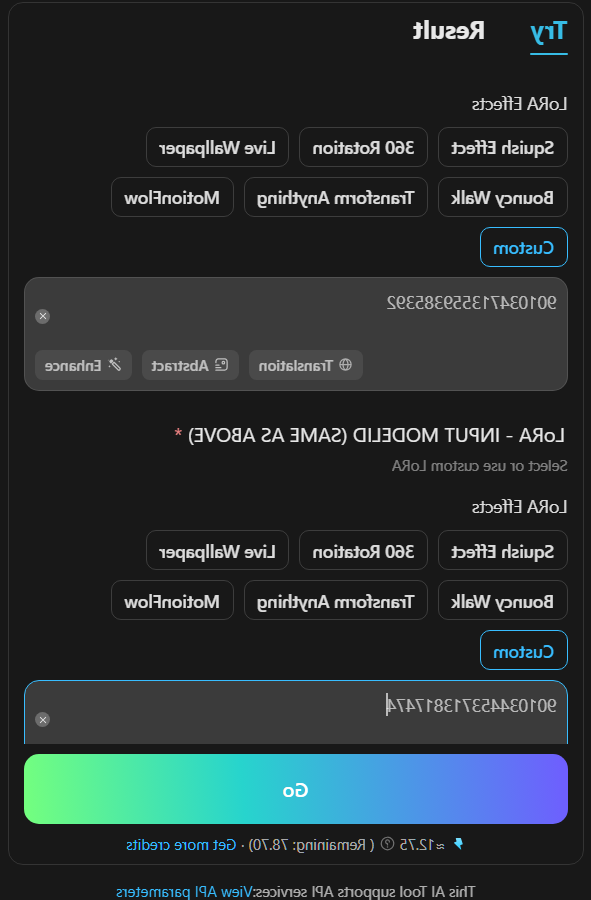
- You’ll see fields for LoRA IDs, strength sliders, and a prompt box.
 Insert Your LoRAs
Fill in the two LoRA ID fields. Set both strengths to 1.
Example:
Code:
First field: 901034713559385392
Second field: 901034453713817474
 Write a Trigger & Prompt
Use a trigger to activate the LoRA and write a clear prompt.
Code:
Trigger: vagina
Prompt: She spreads her legs and shows her unclothed vagina to the camera.
 Generate
- Click Go even if you see red errors.
- Wait for processing (credits shown below the Go button).
- Download your finished clip.
 Quick Reference Table
Code:
Template:
https://tensor.art/template/891989052872481976
Solo explicit pose
First field: 903399991777698689
Second field: 903398370427560470
Trigger: vagina
Prompt: She spreads her legs and shows her unclothed vagina to the camera.
Oral scene
First field: 901034713559385392
Second field: 901034453713817474
Trigger: A man appears and she sucks his penis.
Prompt: A man appears and she sucks his penis. Static camera, fixed viewpoint, still shot.
Penetration
First field: 895005694019803509
Second field: 895007679368407207
Trigger: A naked man and a naked woman having sex. He thrusts his penis in and out of her vagina.
Prompt: A naked man and a naked woman having sex. He thrusts his penis in and out of her vagina. A POV shot.
Masturbation
First field: 898274261842534080
Second field: 898276335237990191
Trigger: She rubs her pussy with one hand
Prompt: She rubs her pussy with one hand while licking the fingers on the other hand.
This is my full workflow — nothing hidden. Just copy the template, paste the LoRA IDs, write your prompt, ignore warnings, and render.